Matching and Merging a Profile
The Merge option allows users to review profiles that potentially must be merged including an indication of which profile is the primary. The ability to merge profiles is only available for properties within the same tenant and profile type.
Perform the following steps to merge the profile:
Navigate to Reservations ➜ Profiles.
Enter the name of the guest, company, travel agent, or loyalty number in the Search field.
Click Go. The profiles are displayed based on the entered details.
Click the profile the user wants to merge.
Click the Merge link. The Profile Merge page appears.
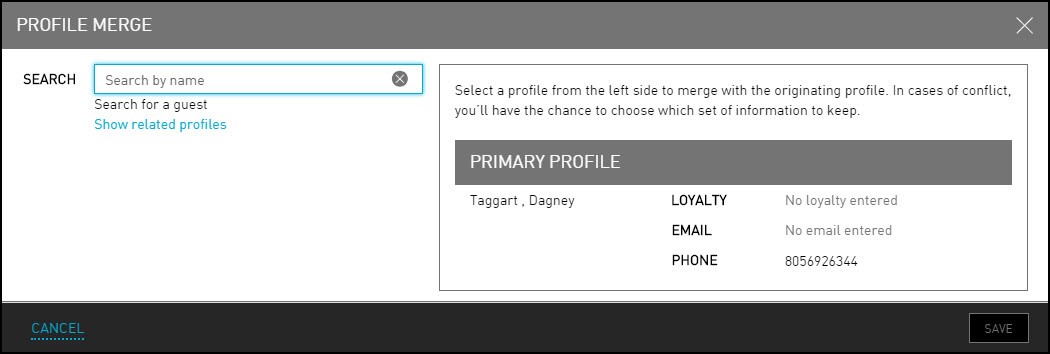
Enter the guest’s name in the Search field if the user knows the name of the guests to merge with the originating profile.
Click Show related profiles option if the user does not have a specific profile identified already. This will list out possible matches of profiles.
In case of conflict, the user will have the chance to choose which set of information to keep. This search helps to identify profiles that are related, but for some reason they are not appearing with the match criteria. For example, Tamara now goes by Tammy or a guest is recently married and so their last name is different than their current profile. The user can review and confirm before merging.
Refer to the following table and fill in the fields to merge a profile:
|
Field |
Description |
|---|---|
|
Loyalty |
The loyalty program of the guest profile. |
|
|
The email address of the guest profile. |
|
Phone |
The phone number of the guest profile. |
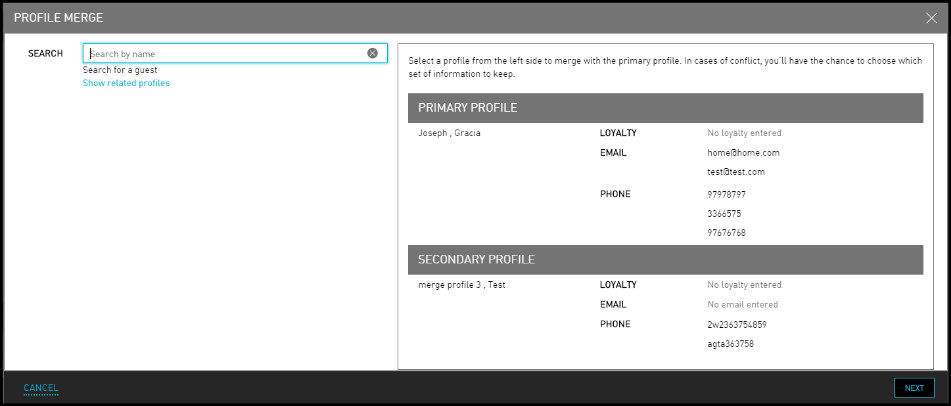
Select Next to review the conflicting information.
Select the data to be saved to the primary profile.
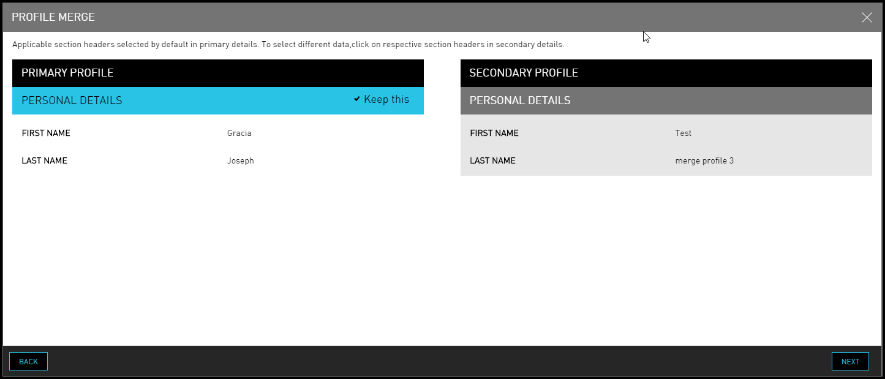
Select the details that the user would like to save to the Primary Profile. All other information will be merged into the final profile.
A profile must have at least one address, email address, phone number, or loyalty number.
Click Ok. The user will see the following message and will also see the status of the Profile Merge. Review the profile carefully.
Merge is not complete until the profile is saved.
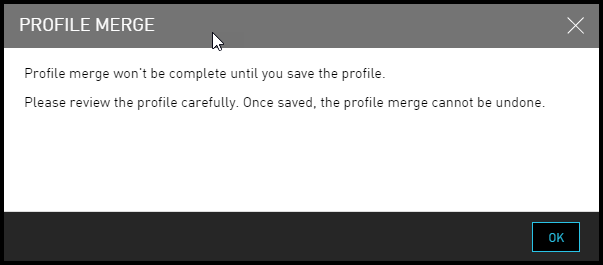

Click Save and the merge begins.
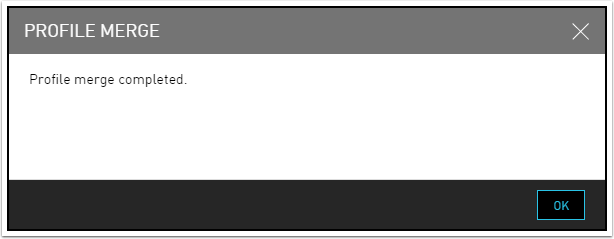
The user will be notified after the completion of merging process.
Once Profile has been merged, click OK. The user cannot undo the merged profile.
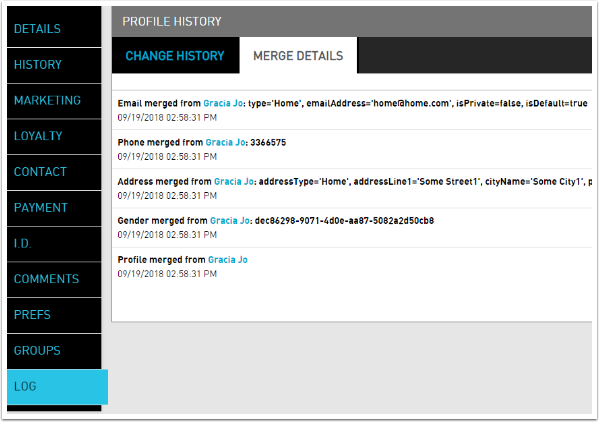
Navigate to Log ➜ Merge Details, to view the details of the merged profile.
View Remnant Profiles
Once the merge is complete, the user can see the primary profile in every place where either of those profiles previously appeared. From the profile page of the primary profile, the user can access the secondary or remnant profile. However, these profiles will be read-only once the merge is complete. The user cannot undo the merge.
Perform the following to view the remnant profiles:
Navigate to Profile ➜ Search.
Enter the name associated with the reservation in the Search field.
Click Go. The reservation details are displayed based on the entered details.
Click Log ➜ Merge Details to view the merge details.